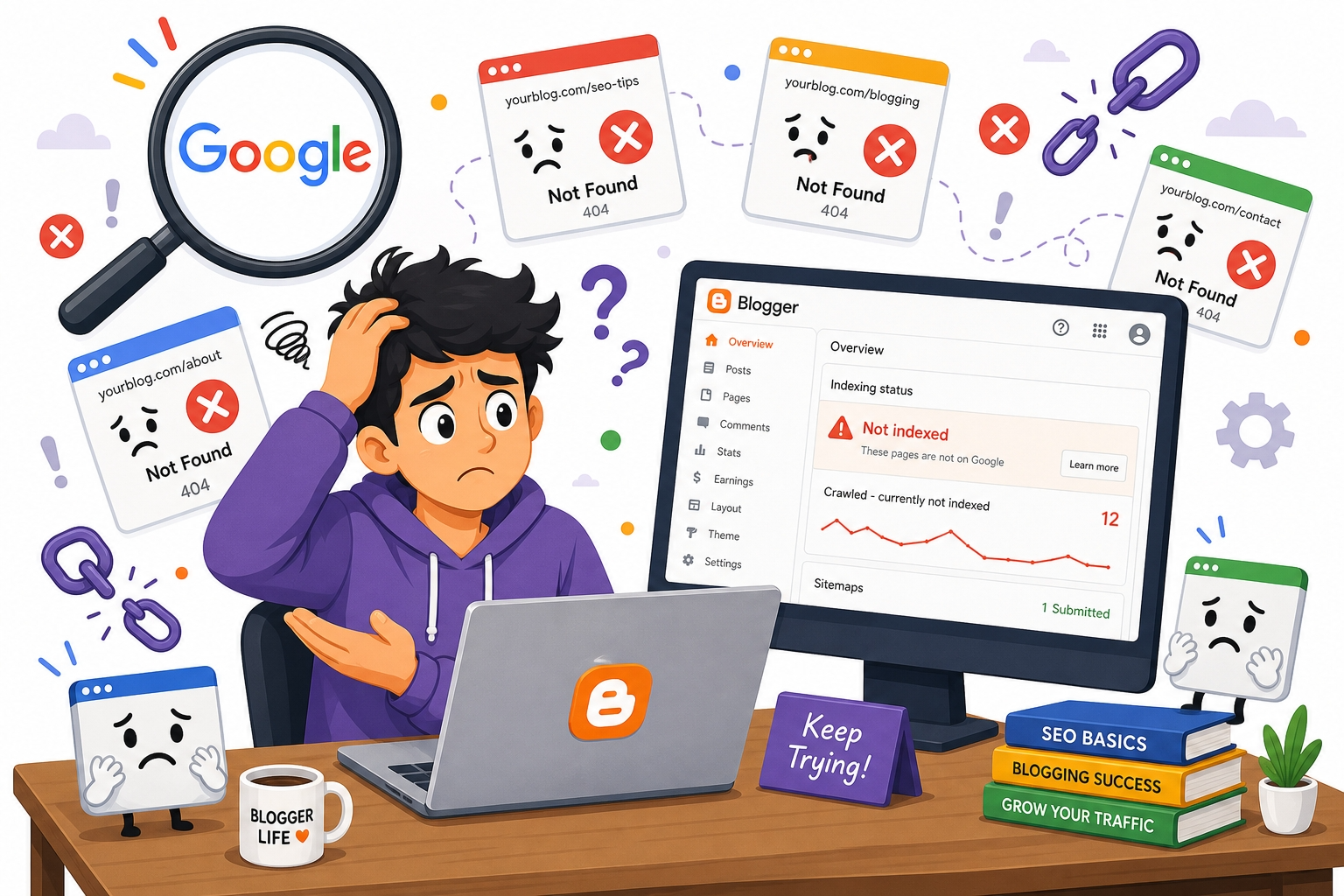
TL;DR: If your Blogger site is not indexing in Google and Search Console shows “Page with redirect” errors, the problem is almost always the ?m=1 mobile redirect, a misconfigured custom domain, or thin content that Google refuses to crawl. This guide walks you through every fix, step by step.
I get this question almost every week from my YouTube subscribers.
“Sir, my Blogspot site is not indexing. It has been 5 months. Search Console shows redirect error. What do I do?”
Here is the truth. Blogger (Blogspot) has a well-known set of indexing problems that Google has never fully fixed. Some of these are platform-level issues you cannot control. Others are configuration mistakes you can fix in 10 minutes.
I have helped dozens of bloggers troubleshoot this exact problem. In this guide, I will walk you through every reason your Blogger site might not be indexing and the exact steps to fix each one.
Why Is Your Blogger Site Not Indexing in Google?
When Google refuses to index a Blogspot site, the cause falls into one of six categories. Some are technical (platform bugs), some are configuration errors (your settings), and some are content quality issues (Google’s quality threshold).
Here is the full list:
- The ?m=1 mobile redirect problem (most common)
- Custom domain DNS misconfiguration
- Blogger privacy settings blocking search engines
- Missing or broken sitemap
- Thin or duplicate content below Google’s quality bar
- Country-code domain redirects (legacy issue)
Let me break down each one.
What Is the ?m=1 Redirect Error in Blogger?
The ?m=1 redirect error is the single most common reason Blogger sites show “Page with redirect” in Google Search Console. It happens because Blogger automatically appends ?m=1 to URLs when serving the mobile version of your site.
Here is how it works. When someone visits your blog on a mobile device, Blogger redirects them from yourblog.blogspot.com/post-title to yourblog.blogspot.com/post-title?m=1. Google’s crawler sees this redirect and sometimes logs it as an indexing issue, especially when the canonical tag points to one version but the redirect sends users to another.
This is a platform-level problem. Google and Blogger (both owned by Google, ironically) have never fully resolved it.
Important context: Google’s official stance is that these redirect errors are “usually not a problem at all” for Blogger sites. Google claims it understands the canonical relationship between the clean URL and the ?m=1 version. But in practice, many Blogger users (especially new sites) see real indexing delays because of this issue. So treat Google’s reassurance with healthy skepticism and follow the fixes below anyway.
How to Fix the ?m=1 Redirect Issue
You cannot eliminate the ?m=1 parameter entirely because it is baked into Blogger’s platform. But you can minimize its impact:
Step 1: Force a single canonical URL
Go to your Blogger dashboard. Navigate to Settings > Basic. Make sure your blog address is set correctly and consistently. If you are using a custom domain, ensure it is the primary address.
Step 2: Add a canonical meta tag override
In your Blogger theme HTML (Theme > Edit HTML), add this code inside the <head> section:
<link expr:href='data:blog.canonicalUrl' rel='canonical'/>This tells Google which version of each URL is the “real” one. Most modern Blogger templates already include this, but older templates might not.
Step 3: Submit URLs in Search Console (both versions)
In Google Search Console, go to URL Inspection. Here is the trick that works for many Blogger users: try submitting the ?m=1 version of the URL for indexing, not just the clean one. Since Google uses mobile-first indexing, the ?m=1 version is often what Googlebot actually sees. Submit both versions and let Google sort out the canonical.
Pro tip: Before panicking about “Page with redirect” errors, use the “Test Live URL” button in Search Console’s URL Inspection tool. The error you see in the dashboard is often a reporting lag, not an actual indexing failure. If the live test shows “URL is available to Google,” your page is fine despite the warning.
Step 4: Wait
After making these changes, Google needs time to recrawl your site. This can take 2 to 8 weeks. Do not panic if results are not immediate.
How to Fix Custom Domain Redirect Errors on Blogger
If you connected a custom domain (like yourblog.com) to your Blogspot site and Search Console shows redirect errors, your DNS settings are probably wrong.
Blogger requires two DNS records to work with a custom domain:
| Record Type | Name | Value |
|---|---|---|
| CNAME | www | ghs.google.com |
| A (or CNAME) | @ | Four Google IP addresses (or forwarding to www) |
The most common mistakes:
Mistake 1: Missing the www CNAME record. Your domain registrar needs a CNAME record pointing www to ghs.google.com. Without this, Google cannot resolve your custom domain and the redirect chain breaks.
Mistake 2: Not setting up naked domain forwarding. The non-www version (yourblog.com without www) needs to forward to the www version. Many registrars support this through their DNS dashboard. If yours does not, add the four Google A records:
- 216.239.32.21
- 216.239.34.21
- 216.239.36.21
- 216.239.38.21
Mistake 3: Having conflicting DNS records. If you previously pointed your domain elsewhere (like a different hosting provider), old A records or CNAME records might conflict with the Blogger ones. Delete all old records before adding the Blogger records.
Step-by-step verification:
- Go to your domain registrar’s DNS management page
- Delete any existing A records or CNAME records for @ and www
- Add the CNAME record: www -> ghs.google.com
- Add the four A records for @ (naked domain)
- Wait 24 to 48 hours for DNS propagation
- In Blogger Settings, confirm the custom domain is verified (green checkmark)
- In Search Console, add both the www and non-www versions as properties
After DNS propagates, request indexing for your homepage and key pages in Search Console.
Is Your Blogger Blog Hidden from Search Engines?
This sounds obvious, but I see it more often than you would expect. Blogger has a setting that can completely block search engines from seeing your site.
Check this immediately:
- Go to Blogger Dashboard
- Click Settings
- Scroll to “Privacy”
- Find “Visible to search engines”
- Make sure it says “Yes”
If this is set to “No,” Google will not crawl or index a single page on your site. Flip it to “Yes” and your site should start getting crawled within a few days.
While you are in Settings, also check:
- Reader access: Should be set to “Public” (not “Private” or “Custom Readers Only”)
- Custom robots.txt: If you enabled a custom robots.txt, make sure it does not contain
Disallow: /which would block all crawling
How to Submit Your Blogger Sitemap to Google Search Console
A sitemap tells Google exactly which pages exist on your site and when they were last updated. Without a sitemap, Google has to discover your pages by following links, which is slower and less reliable for new sites.
Blogger generates a sitemap automatically. Here is how to submit it:
- Open Google Search Console
- Select your Blogger property (or add it if you have not already)
- Click “Sitemaps” in the left sidebar
- Enter your sitemap URL:
sitemap.xml - Click “Submit”
Important note for Blogger sitemaps: Blogger’s default sitemap URL is:
- For blogspot domains:
yourblog.blogspot.com/sitemap.xml - For custom domains:
www.yourblog.com/sitemap.xml
If your blog has more than 150 posts, Blogger splits the sitemap into multiple files. The main sitemap.xml file will contain links to all the individual sitemap files. Google handles this automatically.
After submitting, check back in 2 to 3 days. Search Console will show you how many pages were submitted versus how many were indexed. If there is a large gap, the problem is likely content quality (covered in the next section).
Does Google Consider Your Content Worth Indexing?
This is the part nobody wants to hear. Google does not index every page on the internet. It makes a calculated decision about whether your content is worth the storage space and crawl budget.
Since 2024, Google has been raising the quality bar significantly. Pages that restate widely available information without adding original analysis, data, or expertise are the first to get dropped or never indexed in the first place.
For Blogger sites specifically, here is what Google looks at:
Content originality. If your blog post says the same thing as 50 other posts on the same topic with no unique angle, Google has no reason to index it. You need to add something original: your own experience, your own data, your own screenshots, your own opinion backed by evidence.
Content depth. Posts under 300 words rarely get indexed unless they serve a very specific, unique purpose. For most topics, aim for at least 800 to 1,500 words of genuinely useful content.
E-E-A-T signals. Experience, Expertise, Authoritativeness, and Trust. Google wants to know: who wrote this, why should anyone trust them, and do they have real experience with the topic? Add an author bio to your Blogger profile. Link to your social profiles. Write about topics you actually know.
Site-level quality. If most of your site is thin, low-quality content, Google may decide the entire domain is not worth crawling frequently. One good post on a site full of 200-word filler articles will still struggle to get indexed.
How to Improve Content Quality for Indexing
- Audit your existing posts. Delete or merge any posts under 300 words that add no value. It is better to have 20 solid posts than 100 thin ones.
- Add unique value to every post. Include your own screenshots, experiences, step-by-step processes, or data that readers cannot find elsewhere.
- Write comprehensive content. Cover the topic thoroughly enough that a reader does not need to visit another site for the same information.
- Add images with alt text. Visual content signals effort and improves user experience. Use your own screenshots or properly licensed images.
- Update old posts. Google rewards fresh content. If your posts reference 2023 data, update them with current information.
What About Blogger’s Country-Code Domain Redirects?
Before 2018, Blogger used to redirect visitors to country-specific domains. If someone in India visited yourblog.blogspot.com, they would be redirected to yourblog.blogspot.in. This created massive indexing problems because Google saw dozens of versions of the same page on different domains.
Google fixed this in 2018 by routing all Blogspot traffic through the .com domain. However, some residual effects remain:
- Old backlinks pointing to country-code domains (blogspot.in, blogspot.co.uk) may still cause redirect chains
- Search Console might still show legacy redirect errors from these old URLs
The fix: There is nothing you need to do for this one. Google handles the redirect from country-code domains to .com automatically. If you see these errors in Search Console, you can safely ignore them. They will disappear over time as Google recrawls the old URLs.
How Long Does Blogger Take to Get Indexed?
For a brand new Blogspot site, realistic indexing timelines look like this:
| Scenario | Expected Timeline |
|---|---|
| New blogspot.com domain, no backlinks | 2 to 8 weeks for homepage |
| New blogspot.com with sitemap submitted | 1 to 4 weeks for homepage |
| Custom domain on Blogger with proper DNS | 1 to 3 weeks for homepage |
| Individual blog posts (established site) | 2 to 14 days per post |
| Individual posts (new site, no authority) | 2 to 8 weeks per post |
If your site has not been indexed after 3 months despite following all the steps above, the problem is almost certainly content quality. Google is choosing not to index your pages because it does not see them as adding value to the search results.
Should You Switch Away from Blogger?
I will be direct about this. Blogger is a free platform, and for the price (zero), it does an acceptable job. But if you are serious about SEO and want to grow organic traffic, Blogger has real limitations:
- No SEO plugin support. You cannot install SEOPress, Yoast, or any other SEO plugin. All optimization has to be done manually in the HTML.
- Limited URL structure control. Blogger forces a date-based URL structure (
/2026/06/post-title.html) that is not ideal for SEO. - No server access. You cannot modify server-level redirects, .htaccess rules, or caching settings.
- HTTPS/SSL issues. Blogger’s SSL certificates occasionally glitch. If your site suddenly stops getting crawled, try toggling HTTPS off and on again in Blogger Settings to force certificate renewal.
- The ?m=1 problem is permanent. Until Google/Blogger fixes this at the platform level, you will always have these redirect warnings in Search Console.
- Template limitations. Most Blogger templates are not optimized for Core Web Vitals, schema markup, or modern SEO requirements.
For a free blog where you are learning the basics, Blogger is fine. For a site you want to rank and earn from, consider WordPress with proper SEO optimization or a modern platform like Astro or Ghost.
Step-by-Step Checklist: Fix Blogger Indexing Issues
Here is the complete checklist. Work through each item in order:
- Check privacy settings. Blogger Dashboard > Settings > Privacy > “Visible to search engines” must be “Yes”
- Check reader access. Must be set to “Public”
- Verify custom domain DNS. CNAME www -> ghs.google.com, A records for naked domain
- Check robots.txt. Settings > Crawlers and indexing > Custom robots.txt should not block crawling
- Submit sitemap. Add sitemap.xml in Google Search Console
- Add canonical tags. Verify your theme includes canonical URL tags in the
<head> - Request indexing. Use URL Inspection in Search Console for your most important pages
- Audit content quality. Delete or improve thin posts under 300 words
- Add unique value. Include original screenshots, experiences, or data in every post
- Wait 2 to 8 weeks. New sites take time. Do not expect overnight indexing.
If you have worked through this entire checklist and your site is still not indexed after 8 weeks, the issue is almost certainly content quality. Google is making a deliberate choice not to index your pages.
Frequently Asked Questions
Why does Google Search Console show Page with redirect for my Blogger site?
The “Page with redirect” status in Search Console happens because Blogger automatically redirects mobile visitors to URLs with a ?m=1 parameter. This creates a redirect chain that Google flags. Add canonical tags to your template and submit clean URLs through URL Inspection to fix this.
Can I get AdSense approved but still not be indexed in Google?
Yes. AdSense approval and Google Search indexing are separate systems. AdSense checks whether your site meets content policies and has enough content. Google Search indexing evaluates whether your content is worth showing in search results. A site can pass one check and fail the other.
How do I check if my Blogger site is indexed?
Search site:yourblog.blogspot.com (or your custom domain) in Google. If zero results appear, your site is not indexed. If some pages appear but not all, Google has selectively indexed only the pages it considers valuable enough.
Does buying a custom domain help Blogger indexing?
A custom domain does not directly improve indexing speed. However, it can indirectly help because custom domains look more professional, may attract more backlinks, and give you more control over DNS settings. Make sure the DNS is configured correctly or it will make things worse.
Is Blogger good for SEO in 2026?
Blogger is acceptable for beginners on a zero budget, but it has real SEO limitations: no SEO plugins, forced date-based URLs, the persistent ?m=1 redirect issue, and limited template control. If you are serious about growing organic traffic, consider WordPress or a modern static site generator.
Have questions about Blogger indexing? Drop a comment on my YouTube channel or reach out directly. I read every message.