SEO Tool Reviews
Video To Blog AI Review: 70+ Posts From My Own Videos
My Video To Blog AI review after 70+ posts from my own videos: custom instructions, screenshots, chapters as outline, and my checks before publishing.

In this Video To Blog AI review, I look at the tool I have used to turn my own videos into more than 70 blog posts over a year. It builds the article from what I said in the video, adds screenshots from the recording, and uses my chapters as the outline, so the draft carries my experience instead of AI inventing it. It still needs checking: the keyword setting, links, images and SEO metadata are my job before anything goes live.
Affiliate disclosure: links marked “affiliate link” earn me a commission if you buy, at no extra cost to you. That didn’t change what I wrote. How I review tools. I recorded this review in November 2025, after using the tool since the start of 2025. Prices were checked on 27 September 2026.
Prefer to watch? Here is the full walkthrough.
Jump to a part of the video:
- 05:21 Custom instructions
- 07:17 Premium transcription
- 08:49 Automatic screenshots
- 09:43 Internal and external links
- 12:39 Chapters as the outline
- 20:34 SEO and readability scoring
- 24:01 WordPress publishing
What changed since I recorded this?
My own site. In the video I export to WordPress, and that workflow still works for WordPress sites. alstonantony.com has since moved off WordPress, so for this site I now use the Markdown download instead. The Markdown links its screenshots from Video To Blog’s own storage, so I download those and host them on my site before publishing. The lifetime deal has also ended; current prices are further down.
Why turn videos into blog posts instead of writing first?
Because I explain things better on camera. I’m not a blogging guy, to be honest: I can walk through a tool or a tutorial more naturally in a video than I can write a long article from a blank page, and English is my second language. Some people write the post first and turn it into a video. I go the other way: record the video, where I can show what I’m doing, then turn those explanations into a structured article.
I still want the post to sound like me, with my experience and my explanations. I don’t want AI to invent an article and put my name on it, and that is the reason I keep using this tool. I got access in October 2024 and started using it regularly at the beginning of 2025. My account showed around 70 posts when I recorded this, plus some I had deleted, so this is not based on one try.
How do you start an article without setting everything up again?
Paste a YouTube URL and pick a saved template. The tool pulls in the video details, including the thumbnail. You can also connect a channel or upload a file, but copying the URL is simple enough for me.
The template is the important part. I have several WordPress sites connected, and I don’t want to choose every writing, visual and export option again for each article. A template stores those choices once. I still check the settings before generating, especially the target keyword, for a reason I’ll come to.
What custom instructions make the post sound like you?
Ones that keep the tool to what you actually said. Mine reads: “Use as much as my own words and phrases I have used in my video as possible. Make sub headings as long tail question. Write it in first person view. Try to be in-depth at the same time interesting to user but do not use your creative knowledge instead be factual as possible based on the content in video and mimic the video speaker.”
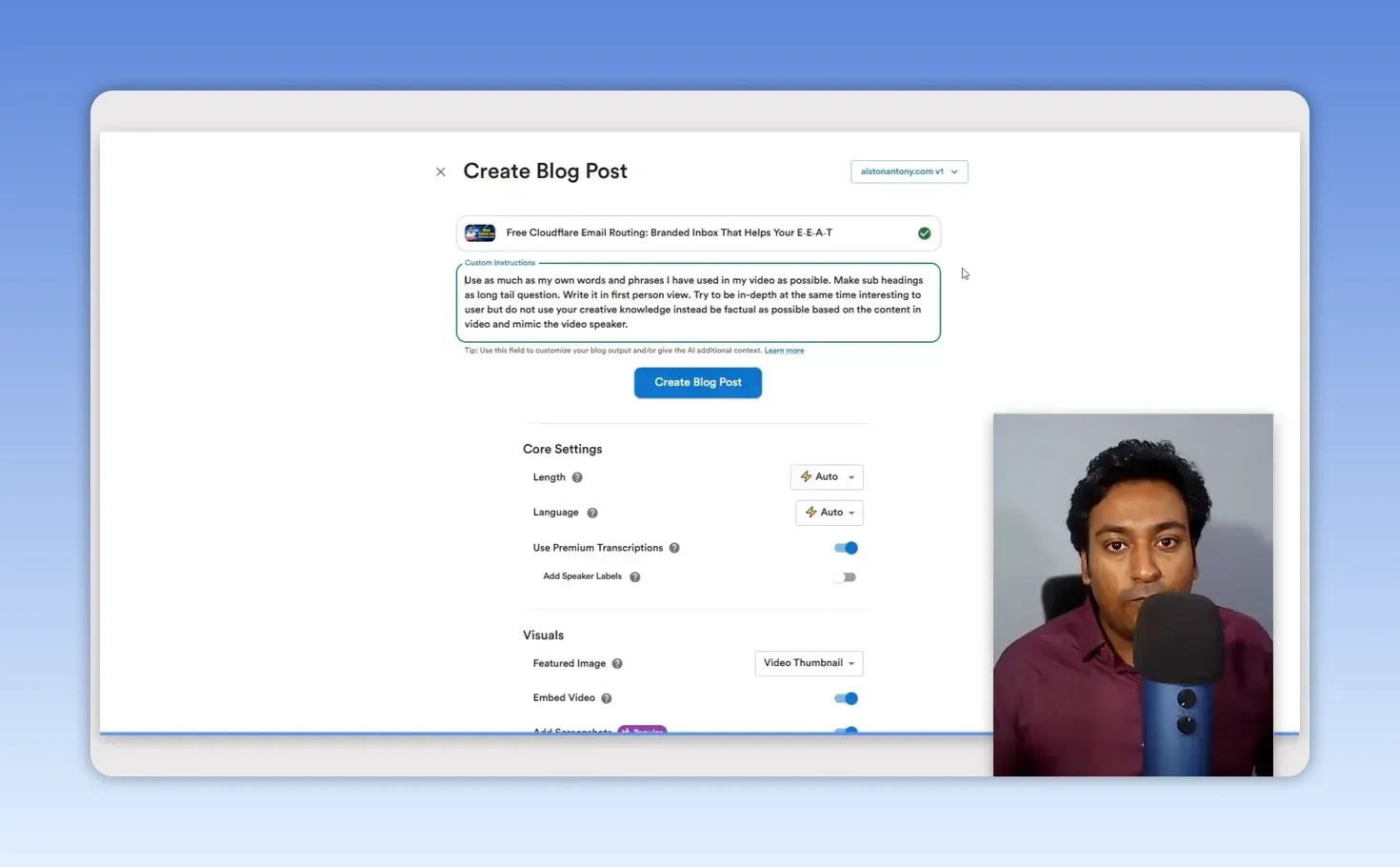
The last part matters most. I’m converting my video into a post, not asking AI to create everything from nothing. You can also give it a writing sample to guide the style; I hadn’t used that in this workflow, but I think it would help.
Which settings do you choose before generating the draft?
Most of them on Auto, and a few on purpose:
- Length on Auto. Ask for a long article from a short video and the tool may pad it to reach the length. For a focused introduction to a video, pick a short post instead. I also leave language and format on Auto.
- Premium transcription on, when I can wait a little longer. The article is built from what I said, so better source text gives a better draft. For a podcast or anything with several speakers, speaker labels help it tell who said what.
- The video thumbnail as the featured image, with the video embed turned on.
- Automatic screenshots on. This is one of my favourite features. It takes frames from the video, places them near the explanation they belong to, and writes filenames, captions and alt text. In a tutorial that would take me a long time by hand, and I can swap a screenshot for a more exact moment if its first pick isn’t useful.
- Chapters as the outline, when the video has them. That gives H2 and H3 sections instead of a wall of text. I add a table of contents and FAQs too. If you plan chapters before you record, both formats benefit.
How do you handle links and SEO without looking spammy?
Turn on only the link sources you can stand behind, and check every link. Video To Blog can add internal links, links from a sitemap, external links and links from the YouTube description. I want links where they are relevant, not inserted at random. While I was rebuilding this site, I left some internal-link options off because the pages I wanted to link to didn’t exist yet. For internal links specifically, I built my own AI internal linking tool.
The tool also gives you a target keyword field, a suggested meta title and description, a URL slug, readability information and keyword analysis. They are useful editing aids, but I don’t follow a score blindly.
Here is the mistake I mentioned. On one article I entered the whole long title as the target keyword: “Free Cloudflare Email Routing: Branded Inbox That Helps Your E-E-A-T”. The draft then tried to repeat that entire phrase where it looked awkward and spammy, and the analysis panel flagged keyphrase density at 6% against a 1% to 5% range. That was my setting mistake, not something to leave in a published post. Now I check the keyword before generating and cut repetition while editing. For choosing what a page should target in the first place, my ChatGPT prompts for keyword research help.
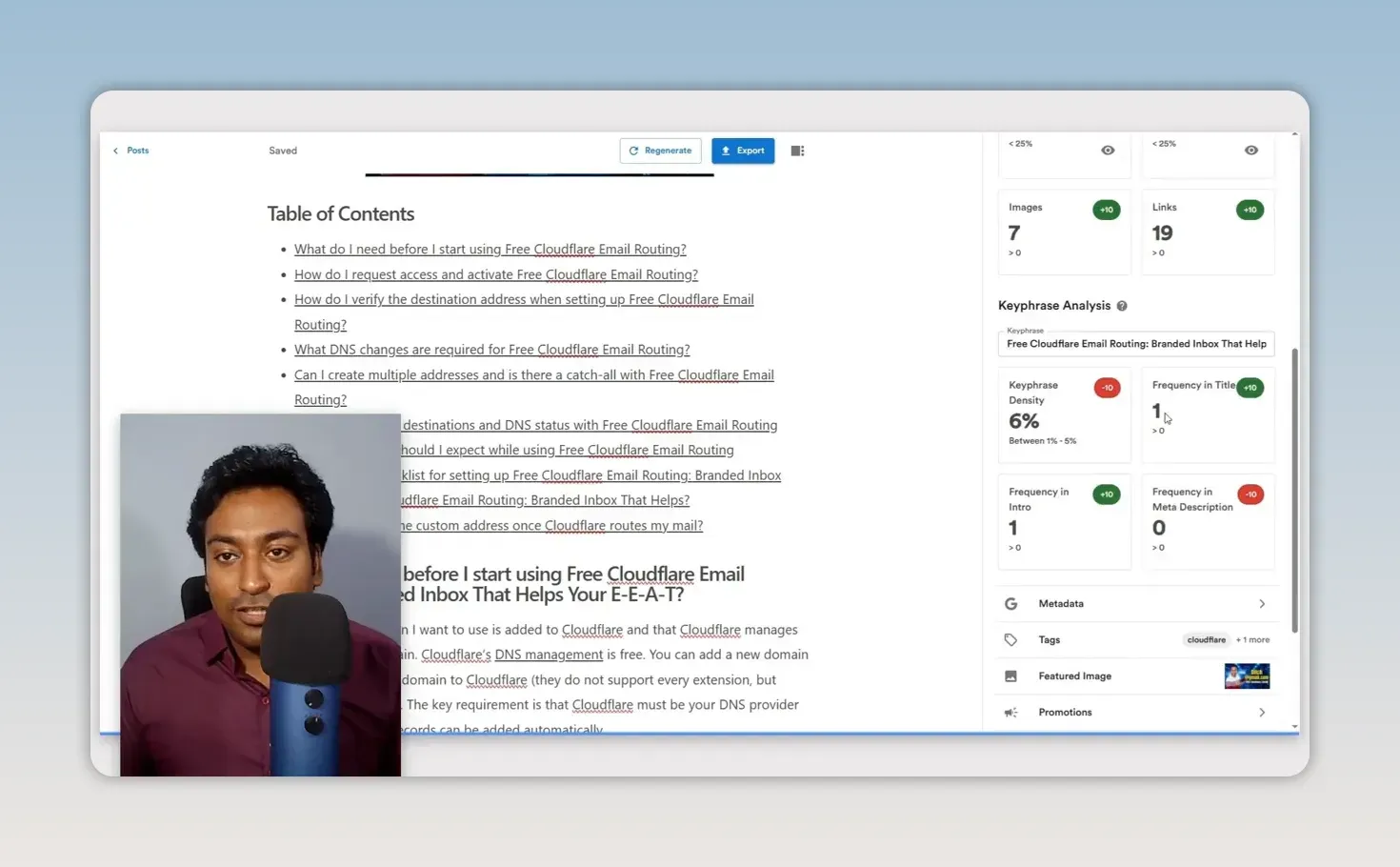
What do you check after the article is generated?
Everything that gives a bad impression or doesn’t say what I meant. I read the draft and check the headings, keyword use, links and screenshots. The editor lets me change the text and image details, including picking a different frame and editing alt text, and the readability report points at long paragraphs and sentences. I also cut AI wording I don’t use; my list of common ChatGPT words to avoid is what I look out for.
With premium transcription the article doesn’t appear instantly. In my example it took several minutes; you can watch the content appear, but you have to wait for it to finish before editing. That wait is fine for me, because it removes far more repetitive work later.
Video To Blog also writes promotional text for Instagram, Facebook, LinkedIn, WhatsApp and email. I treat those as starting points and tweak them so they suit the place they will be posted.
How do you move the draft into WordPress?
Through the WordPress integration, as a draft. The tool also offers HTML, Markdown, Word and PDF downloads. For a WordPress site, I export directly instead of copying everything by hand, with “Export as blocks” and “Create as draft” ticked.
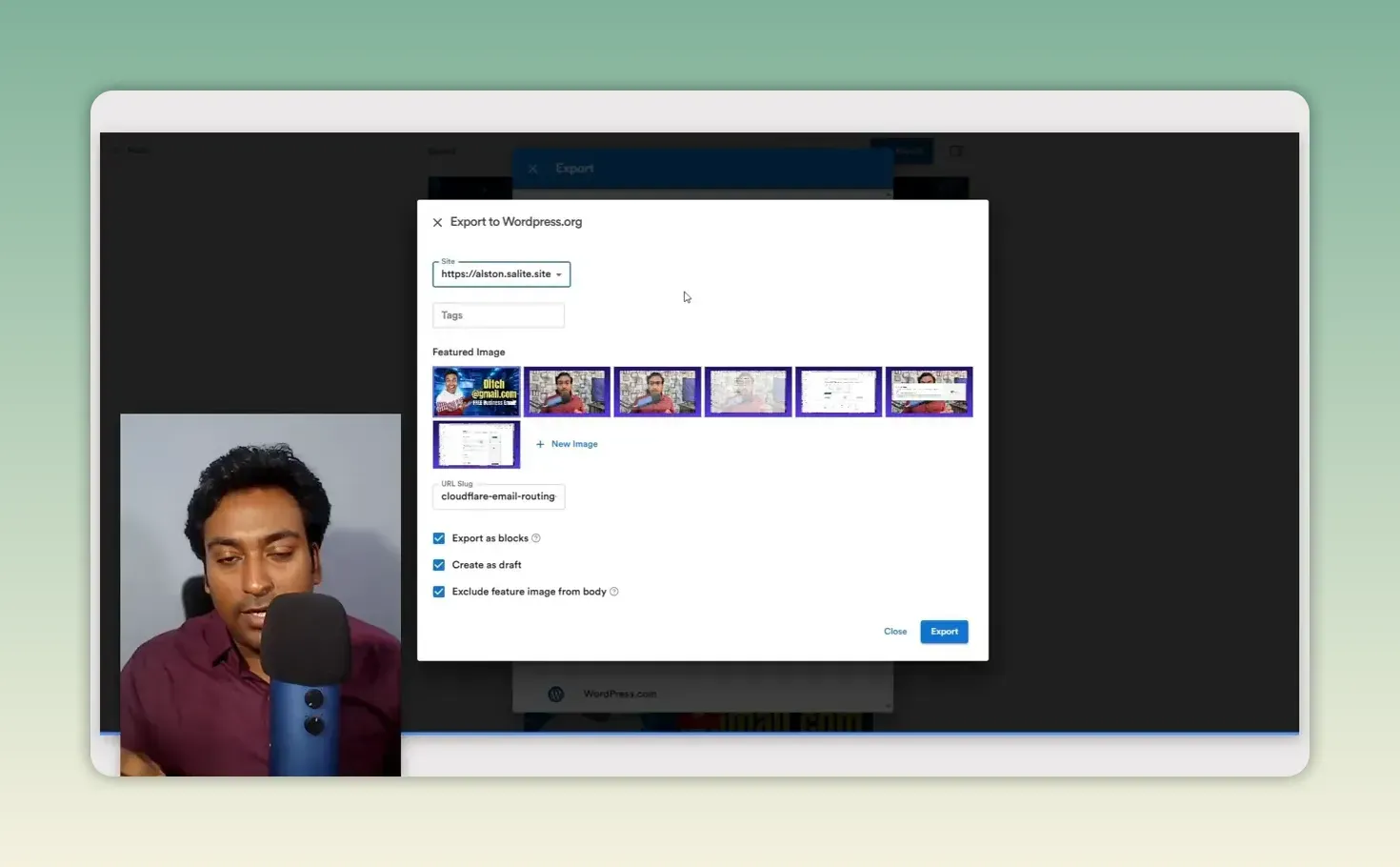
The draft step matters to me. The export brings the images into the site rather than leaving them hosted elsewhere, and it creates the post in WordPress blocks, which I find easier to edit. Then I check the uploaded images and captions, choose the category, review the slug and add or adjust the SEO metadata. In my setup some metadata didn’t arrive in SEOPress as expected, so I entered it by hand. I sometimes replace the inserted video embed with the plain YouTube URL so it displays at full width. Once the category, metadata, links, images and layout look right, I publish.
How much does Video To Blog cost?
There is a free plan, and paid plans start at $14 a month billed yearly. On 27 September 2026, Video To Blog’s pricing page listed:
| Plan | Price (billed yearly) | Videos per month | Max video length | Website integrations |
|---|---|---|---|---|
| Free | $0 | 1 | 30 minutes | None |
| Starter | $14/mo | 5 | 45 minutes | 1 |
| Pro | $39/mo | 15 | 1.5 hours | 3 |
| Business | $69/mo | 50 | 3 hours | 10 |
Yearly billing saves up to 30% against monthly. There was also an AppSumo lifetime deal, with tiers from 10 to 200 blog posts a month; on 27 September 2026 the Video To Blog AppSumo page (affiliate link) was marked sold out.
What I liked and what I didn’t
What I liked:
- The article is built from what I said, and custom instructions keep it there.
- Automatic screenshots arrive with filenames, captions and alt text, placed by the explanation they show.
- Video chapters become the H2 and H3 outline.
- Templates save every setting for each site.
- WordPress export as blocks and as a draft, with images brought onto the site.
What I’d watch:
- A long title in the keyword field makes the draft repeat it awkwardly.
- Premium transcription takes several minutes.
- Some metadata didn’t reach SEOPress in my setup.
- Generated links, screenshots and promotional text all need checking.
Is Video To Blog worth it?
For anyone who explains better on camera than on the page, yes. It is most useful when it removes the repetitive formatting work but leaves you responsible for the article. My video provides the explanations; the tool gives them structure, screenshots and a workable draft; I make sure the final post is useful and sounds like something I would actually say.
If you would rather generate articles from a keyword than from your own recordings, my WordRocket review covers a tool built for that, and how much checking its drafts needed. For planning and scripting the video before you record it, see my Subscribr review.
FAQ
Can Video To Blog publish a post automatically?
Yes, automation is available, but I review each article and export it as a draft before publishing.
What is the most important setting to check before generating?
The template and the target keyword. When I entered a long title as the keyword, it caused awkward repetition throughout the draft.
Start with one tutorial video that has chapters, write custom instructions that keep the tool to what you said, and export it as a draft. The lifetime deal is sold out as I write; if it returns it will be on the Video To Blog AppSumo page (affiliate link), and the monthly plans are on Video To Blog’s pricing page.
Keep reading
You Might Also Like
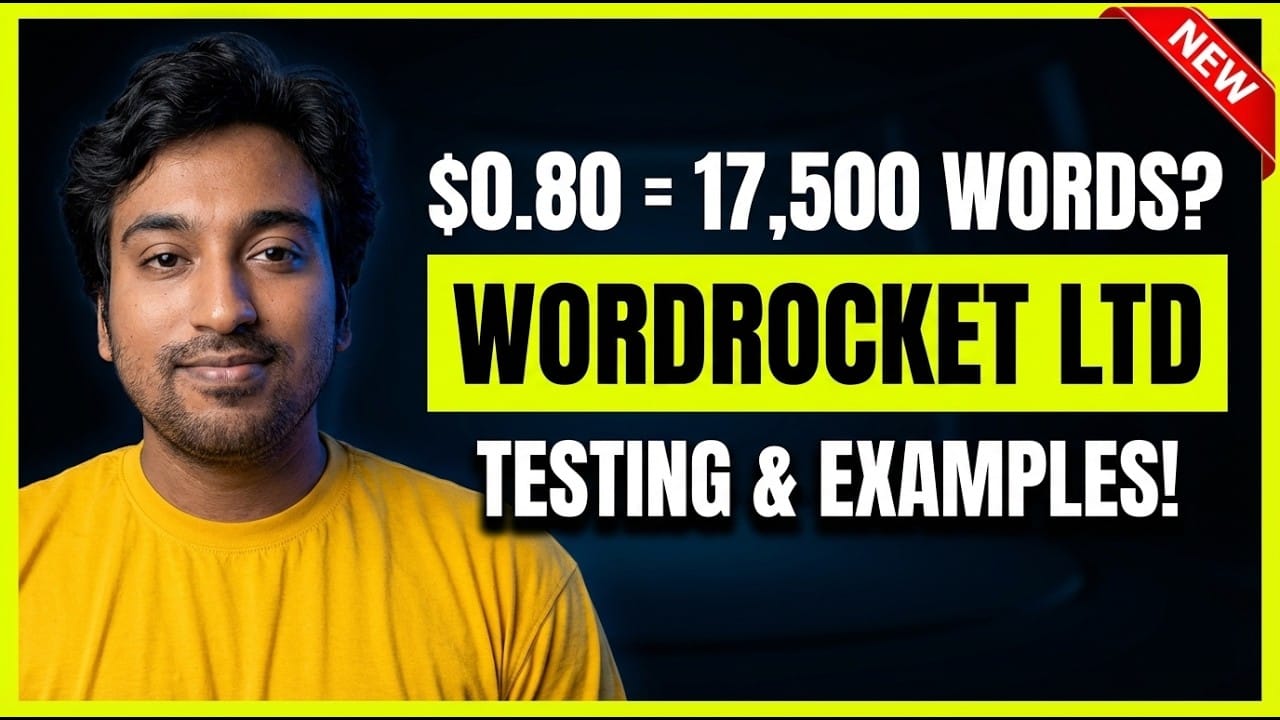
WordRocket Review: 17,500 Words for $0.80 in API Costs
My WordRocket review. Four test articles came to about 17,500 words for $0.80 in OpenRouter usage. Useful keyword research; every draft needed checking.
9 min read
Subscribr Review: AI YouTube Scripts Built on Your Audience
My Subscribr review from a week on my Tamil and English channels. Audience personas, channel voice, outlier research, and an outline before every script.
11 min read
LeadSniper Yellow Pages Review: Finding Local SEO Clients
My LeadSniper Yellow Pages review. One plumber search in New York gave 41 leads with phones, websites and social links, and how I qualify them as clients.
9 min read