SEO
Semrush SEO Audit: How I Find and Fix Site Issues
How I run a Semrush SEO audit: Site Audit settings, which issues to fix first, On Page SEO Checker ideas for each page, and log files for bot activity.

A Semrush SEO audit helps me find the problems on my website, understand what they mean and decide what to fix first. I don’t want to see a score and guess what to do next. I want to find the affected page, look at the issue, make the change and check the result again. I use Site Audit for technical problems across the whole site, the On Page SEO Checker for individual pages and keywords, and the Log File Analyzer when I need to see how bots actually crawl the site.
Affiliate disclosure: links marked “affiliate link” earn me a commission if you buy, at no extra cost to you. How I review tools. I recorded this in January 2024. For my verdict on Semrush as a whole, read my Semrush review.
Prefer to watch? Here is the 40-minute walkthrough.
- 00:52 Site Audit
- 19:00 SEO Content Template
- 23:11 SEO Writing Assistant
- 28:14 On Page SEO Checker
- 37:22 Log File Analyzer
Which Semrush audit tool checks what?
| Tool | What it checks | When I use it |
|---|---|---|
| Site Audit | Technical and SEO errors across the whole site | First, and again after every round of fixes |
| On Page SEO Checker | One page against the keyword it should rank for | When a page isn’t ranking as well as it should |
| Log File Analyzer | Requests bots actually made to your server | When I need to know how Google really crawls the site |
| SEO Content Template and SEO Writing Assistant | A brief for new content, then the draft itself | When writing or rewriting a page |
The content tools have their own guide: my Semrush SEO Writing Assistant guide covers building a brief and improving a draft. This page covers the audit side.
How do I set up a Semrush Site Audit?
I set it up inside a project, then go through every setting before starting the crawl. Site Audit is where I start, because it checks the whole website for general SEO and technical errors; I open it from the on-page and technical SEO tools and add it to an existing project or create a new one.
The settings, in order:
- Crawl scope. Audit the whole domain, a subdomain or a subfolder, and decide whether to include subdomains.
- Page limit. Set a limit that suits the size of the site and your plan. For a quick test I keep it low; for a real audit, make sure the limit won’t stop the crawl before it reaches the pages you care about.
- Crawl source. Start from the website, its sitemaps, a sitemap URL you enter, or a file of URLs. I normally choose the website.
- Crawler settings. Choose the user agent, crawl delay, how to treat robots.txt and whether to render JavaScript. I like a Google mobile or Google desktop user agent, so the crawl resembles Googlebot and finds the problems Google is likely to find.
- Allow and disallow URLs. Focus the audit on the URLs you want checked, or skip ones you don’t need.
- Remove URL parameters. Ignore parameters such as online store filters, which can create many versions of the same page.
- Website restrictions. Crawl restricted areas, with a username and password if needed, when you have access.
- Schedule. Run it once or repeat it; weekly is enough for most sites.
One small thing I always watch: go through all the settings before pressing Start Site Audit. Starting straight away can run with the default values instead of the choices you meant to make.
How do I find and fix the most important Site Audit issues?
Start with errors, then warnings, then notices, and fix the cause rather than each URL. When the crawl finishes, I first check whether it hit the page limit, because then the report doesn’t cover the whole site.
The overview shows site health, crawled pages, errors, warnings and notices, and thematic reports for crawlability, HTTPS, internal linking, markup and Core Web Vitals. When I audited MatchMaker.lk with a 100-page limit, site health was 88%, with 2 errors, 123 warnings and 430 notices. Crawlability scored 92% and HTTPS 99%, but Core Web Vitals only 40%. The number on its own wasn’t the useful part; finding out what I could actually fix was.
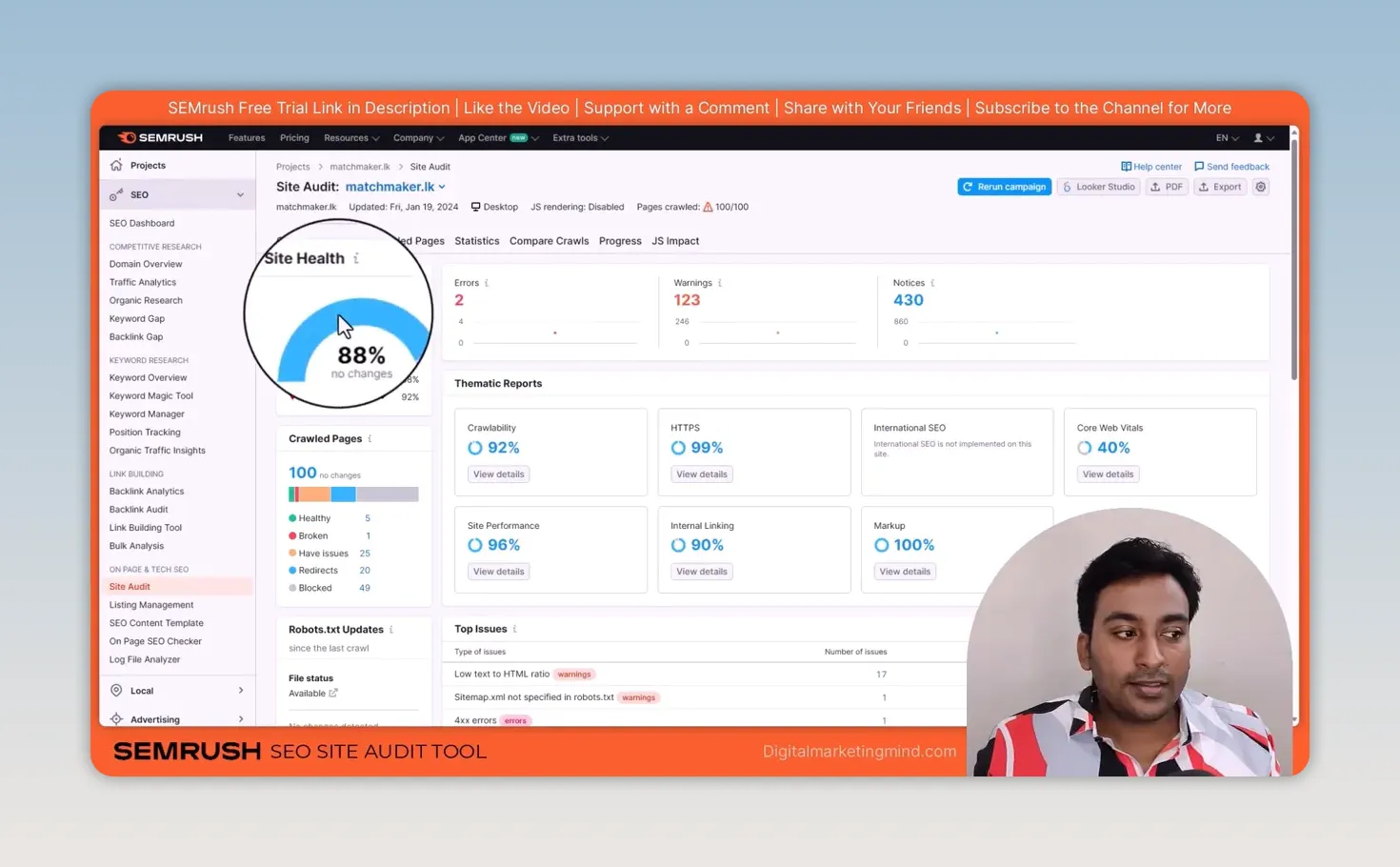
In Issues, each problem shows the affected URLs, what it means and how to fix it. One error was a broken link, a 404, because I’d forgotten to make an email address a “mailto:” link. The fix was simple: edit that link on the page and rerun the audit.
Another warning found 96 unminified JavaScript and CSS files across many pages. Rather than editing every page, I’d check whether the WordPress theme or a speed plugin such as LiteSpeed Cache or WP Rocket could minify the files across the whole site, and one change fixes them all. That’s why I always look for the cause before treating every affected URL as a separate job. Notices are lower priority, such as 330 links with no anchor text, and some may be fine for your site.
The Crawled Pages report shows HTTP status, load time, issues, markup and crawl depth for each page. I pay particular attention to important pages that take more than three clicks to reach from the homepage. Statistics shows the broader patterns, such as crawl depth and how many pages have structured data; my guide to Google’s Rich Results Test covers checking that markup. For the theory behind each check, Semrush’s own Site Audit guide is useful, and my guide to how search engines work explains why crawlability matters in the first place.
Finally, after making changes I use Compare Crawls and Progress. A fresh crawl tells me whether an issue has gone, and repeated crawls show whether the total errors and warnings are falling. I add notes about what I changed, which helps when I come back to the project months later.
How do I check on-page SEO for specific pages and keywords?
With the On Page SEO Checker, which looks at a page in relation to the keyword it should rank for. Site Audit checks the whole site; this checks the match between one page and one keyword. I set it up inside a Semrush project, choose the target location (country, region or city) and device, pick a crawl user agent, and decide whether it runs once or on a schedule.
Then I import keyword and URL pairs from Semrush data, add them manually, upload a CSV or connect Google Search Console. After I click Collect Ideas, it checks every target page; for MatchMaker.lk it collected 32 keywords for 4 pages. It groups its suggestions into strategy, SERP features, content, semantic, backlinks, technical SEO and user experience ideas (the last needs Google Analytics connected).
My favourite part is opening the ideas for one page rather than reading only the project summary. Suggestions included adding aggregate rating markup because competitors had it, avoiding keyword stuffing in the body, making the text easier to read, improving the title and meta description, and covering related terms the page was missing. Each opens into a detailed comparison with the pages ranking for that keyword. Top 10 Benchmarking compares your page with the top 10 on content length, referring domains, video and readability, and Idea Tasks turns the suggestions you choose into a to-do list.
I use those comparisons to understand what might be missing, not to assume every competing page got everything right.
How do I use log files to check bot activity?
Upload your server’s access log and look at what bots actually requested. For the Log File Analyzer, I first need a log file; depending on the hosting, it’s under Raw Access in cPanel, or the host’s support team can send it. I upload it to Semrush and start the analysis.
The report shows bot activity over the period the file covers: visits by day, status codes and file types. For each page I can see how often bots crawled it, when they last did and the last status they got. When a URL returns inconsistent status codes, which in my case was a feed returning a 301, I open the detail and investigate. This is different from guessing how often a page gets crawled: these are the requests the server recorded.
Semrush’s old Log File Analyzer page now redirects to its Site Audit page, so check where log file analysis sits in your account before you look for it.
What is my full audit process?
- Run Site Audit to find general problems, and fix errors first.
- Prepare and improve pages with the content tools.
- Check the pages that matter with the On Page SEO Checker, keyword by keyword.
- Look at server logs when I need to know how bots really crawl the site.
- Make the changes, then check again.
That last step matters most, because an SEO report only helps when you use it to fix something on your website.
Try Semrush free here (affiliate link).
FAQ
What is a good Site Audit score in Semrush?
There isn’t a target number. Use the score to track direction over time, and focus on fixing errors and the warnings that affect your important pages. When I recorded, the top 10% of sites scored around 92%.
How often should I run a Semrush Site Audit?
Weekly is enough for most sites, and always after a round of fixes or a big change such as a redesign or migration, so you can compare the crawls.
What is the difference between Site Audit and the On Page SEO Checker?
Site Audit finds technical problems across the whole site. The On Page SEO Checker compares one page with the pages ranking for the keyword you want it to rank for, and suggests improvements.
Keep reading
You Might Also Like
How do I check Google algorithm penalty?
How do I check Google algorithm penalty? Pick the month your traffic fell and see every confirmed Google update from that window. Free, no signup.
5 min read
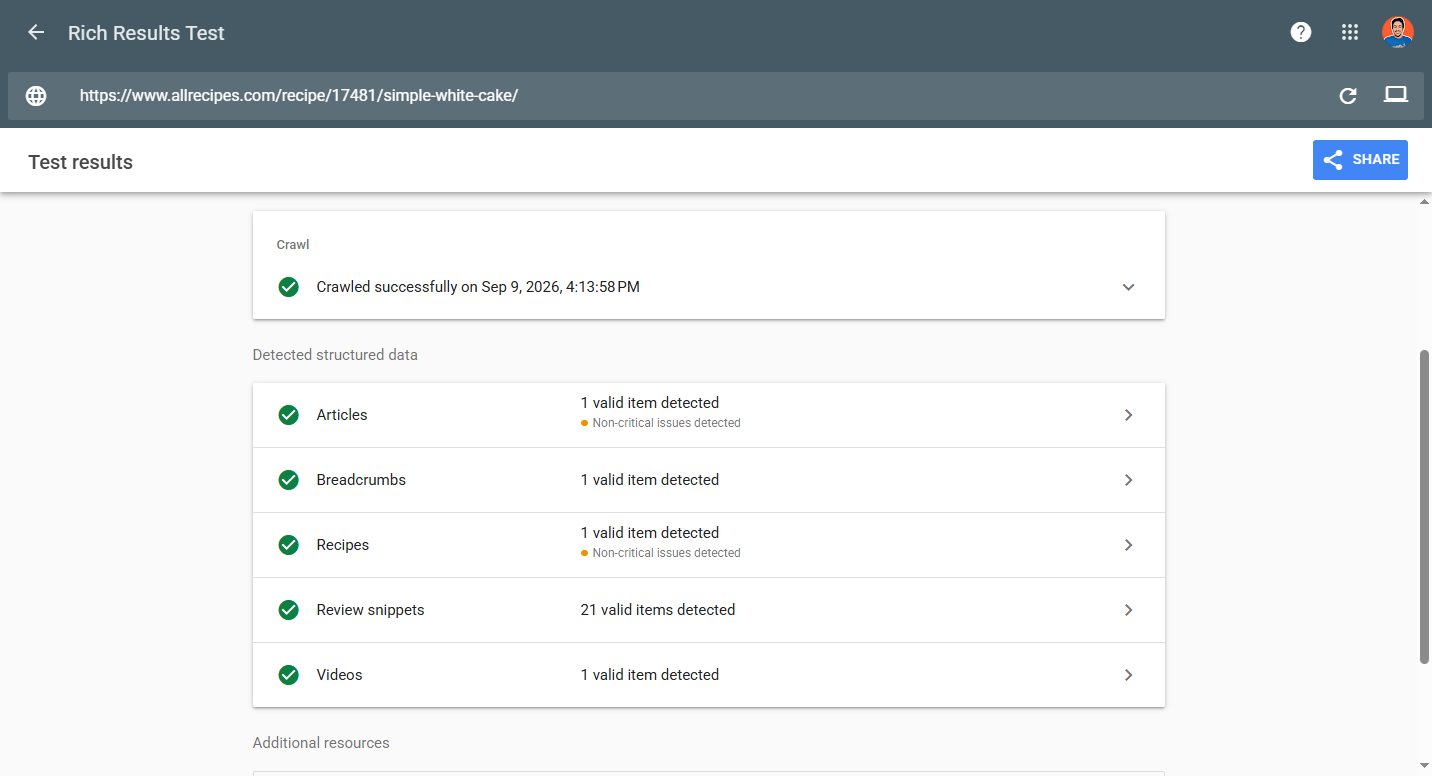
What Is the Google Rich Results Test?
The Rich Results Test reports eligibility, not validity, not display, not ranking. Google's own docs say a pass guarantees nothing. Here is the gap.
4 min read
Convert SEO Keyword List to Comma Separated Keywords List
Convert SEO keyword list to comma separated keywords list in one paste. Drop a column from Excel, Ahrefs or Search Console in, get a joined line out.
5 min read