SEO
Semrush SEO Writing Assistant: How I Write Better Articles
How I use the Semrush SEO Writing Assistant with the SEO Content Template: a brief from the top 10, then checks for readability, SEO, tone and originality.

The Semrush SEO Writing Assistant helps me do the two things that matter when I write an article: give real value to the people I’m writing for, and cover the SEO signals that help search engines understand the page. I don’t want to write only for a keyword, and I don’t want to publish a useful article without knowing what people are searching for either. So I use it together with the SEO Content Template: the template turns a keyword into a brief based on the pages already ranking, and the Writing Assistant checks my draft against that brief while I write.
Affiliate disclosure: links marked “affiliate link” earn me a commission if you buy, at no extra cost to you. How I review tools. I recorded this in 2024. For my verdict on Semrush as a whole, read my Semrush review.
Prefer to watch? Here is the walkthrough.
Which plan includes the SEO Writing Assistant now?
Check before you rely on it. On 29 September 2026, both tools still had their own pages on Semrush’s site, but Semrush now sells a separate Content Toolkit, and its SEO plans list “content optimization” under Pro+ rather than the entry plan. When I recorded, some of this, like sending a keyword cluster straight to the Writing Assistant, needed the Guru plan. Look at the current plan comparison, or try it in the free trial, to see what your plan includes.
What do the SEO Content Template and SEO Writing Assistant each do?
| SEO Content Template | SEO Writing Assistant | |
|---|---|---|
| When I use it | Before I write | While I write |
| What goes in | A target keyword, country and device | The brief, or a keyword, plus my draft |
| What comes out | A brief from the top 10 Google results | Scores and highlights for readability, SEO, tone of voice and originality |
| Where it works | Inside Semrush, or exported to a document | Semrush, Google Docs and the WordPress editor |
How do I create an SEO content brief with the SEO Content Template?
I enter my target keyword, choose the country and device, and click Create content template. I start here because it gives me a proper direction before I begin writing; you’ll find it with Semrush’s on-page tools. If you are new to choosing keywords, my ChatGPT prompts for keyword research cover that step first.
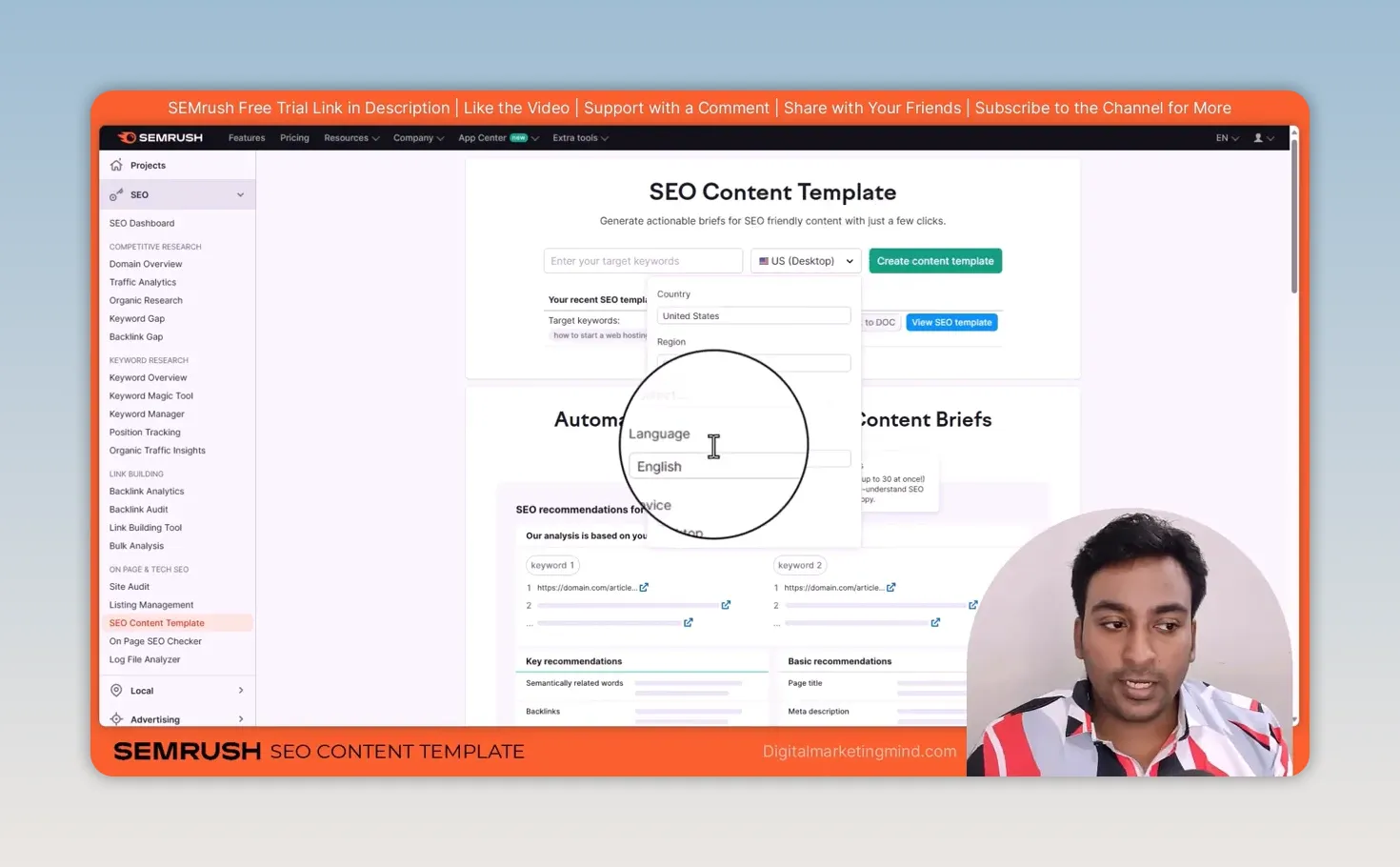
For my example, I used “how to start a web hosting business”. Semrush built its recommendations from the top 10 Google results for that keyword, and I can open each rival URL to see which pages the brief is based on. That matters, because I’m not guessing what kind of content already ranks.
From there I have three options: use the recommendations to write the article myself, export them to a document for a freelance writer, or send the keyword and recommendations to the SEO Writing Assistant. If somebody else is writing for me, the exported brief explains what the article needs to cover, instead of handing them a keyword and hoping for the best.
What do I look for in the SEO Content Template recommendations?
Related keywords first, then backlinks, readability and length. The brief lists semantically related words, phrases I may want to cover naturally where they are relevant; for the web hosting example they included “reseller hosting plans”, “dedicated server” and “virtual private server”. Then it suggests domains to get backlinks from, which I treat as domains to investigate, not a promise that each one will link to me. My guide to Semrush backlinks covers how I check them.
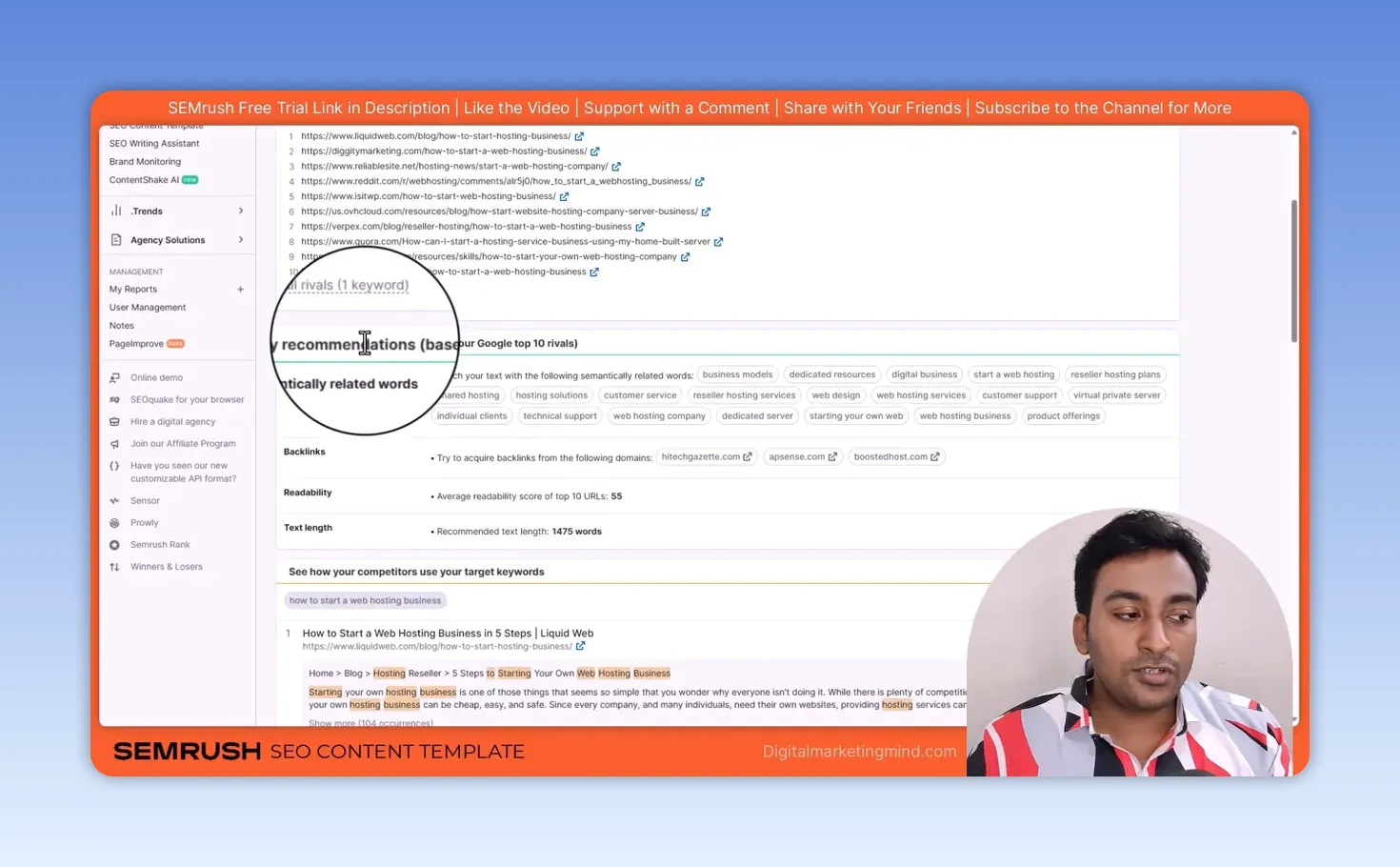
In that example, the top 10 pages had an average readability score of 55, and Semrush recommended 1,475 words. I use those numbers as a reference for planning; they don’t mean every article must hit an exact score or word count. The article still has to answer the reader’s question properly.
I can also see how the competing pages use the keyword in their titles, URLs and body text. Semrush shows each occurrence, and I open them to see the context rather than just count repetitions. The template adds basic recommendations for the page title and meta description too, which help if you are just getting started with SEO.
I read all of this as research, not as instructions to copy a competitor. I want to understand the topic, spot anything important I might have missed, and then write something that genuinely helps the reader, which is also what Google’s guidance on creating helpful content asks for.
How do I move from the brief into the SEO Writing Assistant?
I click Real-time content check. Semrush transfers the target keyword and recommended keywords into the Writing Assistant, so I don’t set up the same information twice.
I can also open the Writing Assistant directly from the content marketing tools and create a new text, go back to earlier documents, or bring keywords in from other Semrush tools such as the Keyword Magic Tool. Inside the editor, I can type and format the article, or, if I’ve already published a post and want to improve it, import its text from a URL instead of starting again. Semrush also integrates the Writing Assistant with Google Docs and the WordPress editor, which helps when I’d rather work there.
How do I use the SEO Writing Assistant to improve an article while I write?
By switching on the highlights and working through the checks. It looks at four areas: readability, SEO, tone of voice and originality. With highlights on, it marks the parts of the text with a possible issue; I select one, read the tip and decide whether to change it or ignore it.
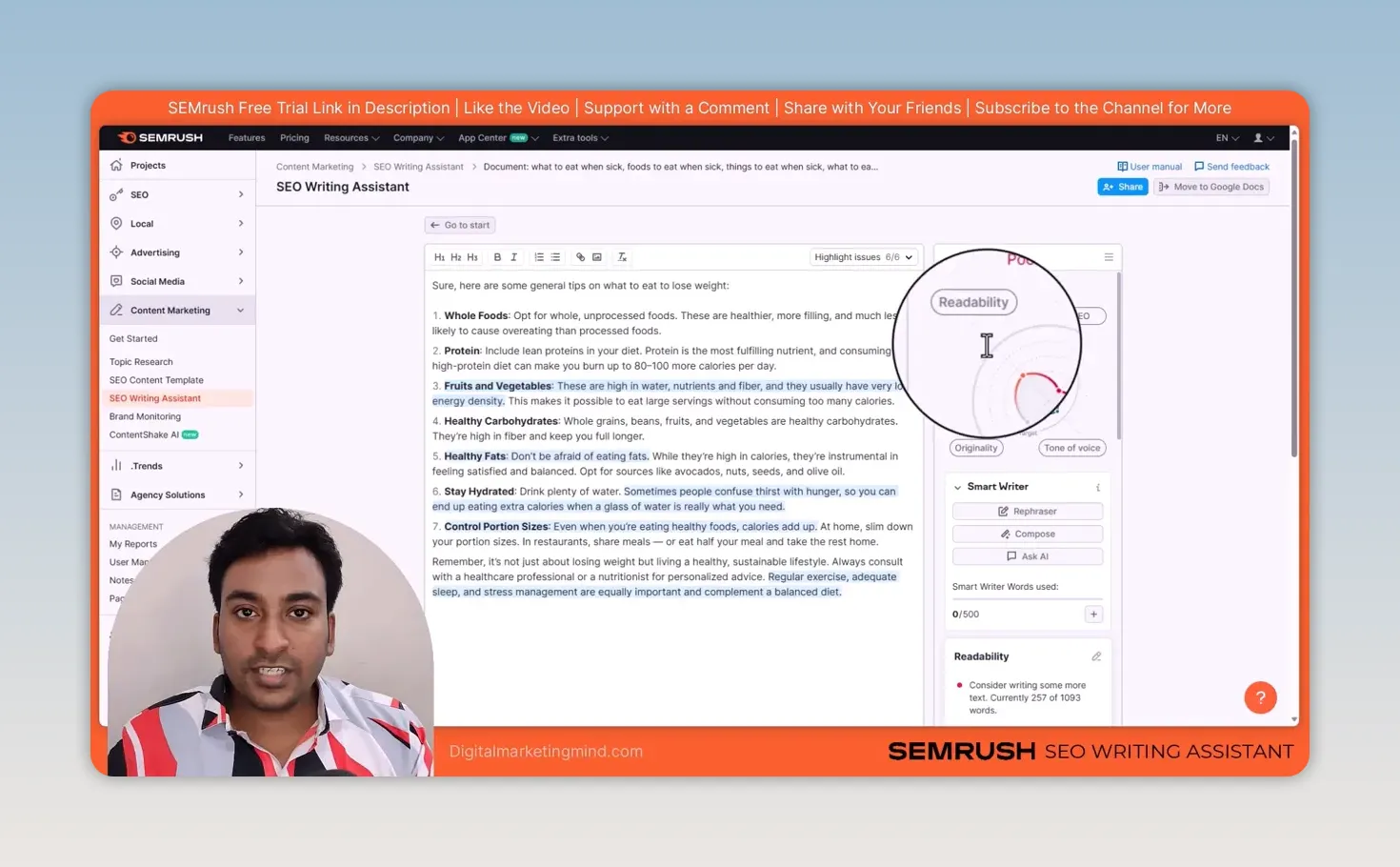
On the right is an overall score. My sample draft, some AI-generated text, started at 3.5 out of 10, and I opened each area to see what needed attention. Readability showed I’d written only 257 of the recommended 1,093 words and still needed a title. SEO listed the target and recommended keywords I hadn’t used yet. When I added the phrase “what to eat when sick” to the document, its status changed and the score started to rise. That’s what makes it practical while writing: I can see what I’ve covered and what I may still need.
But I don’t try to fix every suggestion. A good score helps me spot gaps, but adding an awkward sentence just to turn something green won’t improve the article for a real person. I check whether each suggested keyword or change fits what I’m actually trying to explain.
When do I use the AI writing options instead of writing everything myself?
When a particular section needs work, not to make my decisions for me. The Writing Assistant has a Smart Writer, with access depending on your plan. In my example I selected some text and tried rephrasing, expanding and summarising it, then accepted the result, rejected it or tried again. Rejecting a result didn’t use up my credits.
If an expanded version adds too much, I keep my original wording; if a summary makes a point clearer, I use that instead. I still want the article to reflect what I know and what I would actually say. If you do use AI text, my list of common ChatGPT words to avoid helps it sound less machine-written.
What is my full process?
Choose a keyword, build a content brief from the pages already ranking, write the article, and use the live checks to find worthwhile improvements. Semrush organises the research and tracks the details; I stay responsible for making the content valuable. Before I improve content, I fix the technical side first; my Semrush SEO audit guide covers that.
Try Semrush free here (affiliate link).
If you would rather have AI draft the whole article from your own research, my WordRocket review covers a tool built for that.
FAQ
Do I need a 10 out of 10 score in the SEO Writing Assistant?
No. The score helps you spot gaps, such as missing keywords or a draft that is too short. Fix the suggestions that make the article better for the reader and ignore the ones that would make it read worse.
Can I use the SEO Writing Assistant outside Semrush?
Yes. Semrush has integrations for Google Docs and the WordPress editor, so you can see the same checks while you write there.
Should I copy what the top 10 pages do?
No. The SEO Content Template shows what the ranking pages cover, which is useful research, but your article still needs to answer the question better and in your own words.